Upload a File
To upload a new asset, users can start by clicking the + Nuovo Asset button located at the top right corner of the screen.

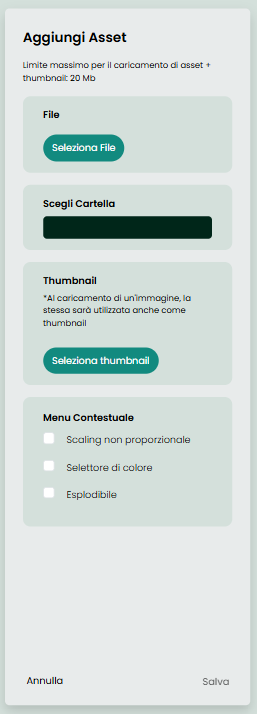
Clicking this button will open a side panel, allowing users to upload a new asset into the database.
Choose a Folder
Select the folder where the asset will be stored from the list of existing folders. If no folder is selected, the file will be stored outside of any folders.
Upload an Asset File
Choose the asset file you wish to upload. Currently, the supported file formats include:
- Images: .jpg and .png
- Videos: .mp4
- 3D Models: .glb
- Documents: .pdf
Choose a Thumbnail
While optional, uploading a thumbnail is recommended to help identify the asset quickly. Users can upload an image to serve as the thumbnail for the asset. If the asset file itself is an image, it will automatically be used as the thumbnail. The option to skip the thumbnail upload is also available if a separate thumbnail is unnecessary.
The maximum size for each upload, which includes the combined size of the file and the thumbnail, cannot exceed 20 MB.
Contextual Menu Parameters
When uploading a file, users can choose additional parameters that define certain properties of the asset:
- Non-proportional Scaling: Allows resizing of the asset without maintaining its aspect ratio.
- Color Selector: Enables a color selection tool if the asset includes multiple color options (primarily for 3D objects).
- Explodable: Marks the asset as having parts that can be separated or "exploded" (applicable to certain 3D objects).
Save
Once all selections are made, click Salva to upload the asset. If you wish to cancel the upload, click Annulla.